Privacy
Your Whonix Updates Finished. Is Your Monero Wallet Updated Too?
Check Whonix Gateway, Workstation, Qubes templates, and separately installed Monero wallets. Learn which updater applies and where each command runs.
A successful Whonix system update does not prove that a separately downloaded Monero wallet is current. The Gateway, Workstation, wallet application, and host computer can each have a different update path. On Qubes, templates and the App Qubes based on them add another distinction.
The practical check is to identify where each component is installed, update it through the appropriate mechanism, restart what needs restarting, and inspect the version you run. Checking only the most recent updater window leaves gaps.
We reviewed the official documentation on November 8, 2026. The Whonix project announced non-Qubes 18.2.4.3 on November 6. That image release number is not proof that every package or downloaded wallet in an existing installation is current. Whonix release announcement.
We have not executed these updates in a Whonix or Qubes installation for this article. Check current advisories before using the steps, particularly the Qubes-specific APT notice below.
Identify what you are updating
| Component | Its role | Where to check for updates |
|---|---|---|
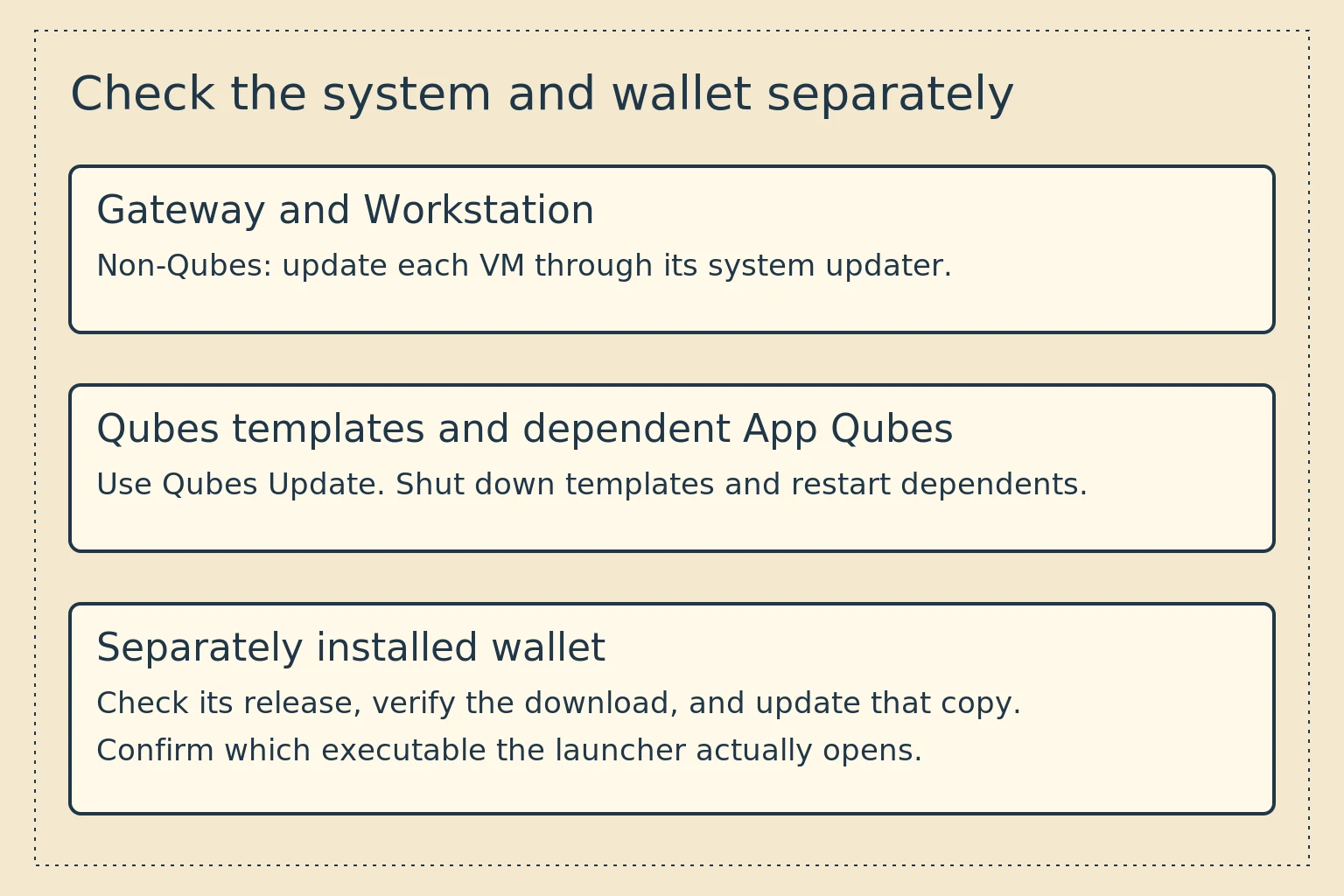
| Whonix Gateway | Provides the Tor network connection for the Workstation | Its own system updater, or its Qubes template through Qubes Update |
| Whonix Workstation | Runs the user's applications | Its system updater, or its Qubes template through Qubes Update |
| Qubes App Qube | Uses its template's system while retaining its own private data | Restart after template updates, then check software stored privately |
| Downloaded Monero wallet | Runs from a downloaded archive, AppImage, or another separate installation | The wallet project's release and verification process |
| Host and virtualization software | Run the virtual machines | The host platform's supported update process |
For background on the Gateway and Workstation relationship, see our beginner's operating-system comparison. Keep ordinary wallet use in the Workstation. The Gateway's job does not require your wallet seed or wallet files.
Non-Qubes Whonix: update both virtual machines
For ordinary non-Qubes Whonix installations, the official command reference lists upgrade-nonroot for operating-system updates. Run it in a terminal inside Whonix-Gateway, and separately inside Whonix-Workstation:
upgrade-nonroot
Read the results in each machine. Check for failed downloads and package errors, including any update you declined. Resolve errors before treating the machine as current.
Follow any restart instructions. Restarting the Gateway interrupts the Workstation's network path, so save work and plan that interruption. After both systems are ready, run the documented health check inside each Whonix VM:
systemcheck
To inspect the Whonix version reported by either VM, run this inside that VM:
cat /etc/whonix_version
This reports Whonix's version information. It does not inspect the version of an unrelated AppImage in your home directory. Keep a note of which VM you checked rather than treating the Gateway's result as the Workstation's result.
Update the host operating system and virtualization software through their own supported tools. An updated guest cannot repair an unpatched or compromised host.
Qubes-Whonix: use Qubes Update
On Qubes, update the Whonix Gateway and Workstation templates through the Qubes Update tool. Do not apply the non-Qubes command block above inside an ordinary App Qube and assume that its template has changed.
Qubes has a current security-specific requirement. QSB-122 instructs users to use Qubes Update, which handles update ordering. For command-line users, dom0 must be updated by itself first. Only after that succeeds should Debian and Whonix templates and standalones be updated through qubes-vm-update. The bulletin says not to substitute direct apt commands.
The required dom0 packages named in the bulletin are qubes-core-dom0-linux 4.3.25 and qubes-mgmt-salt-dom0-update 4.3.4. At this review, the bulletin describes migration from security-testing to stable over two weeks. We have not established availability in your configured repositories. If the updater offers nothing, check the installed package versions against the bulletin before assuming the fixes are present.
Prefer the graphical Qubes Update workflow and consult the bulletin if the fixed packages are unavailable. Do not enable testing repositories just to make a command in this guide succeed. Our Qubes and Whonix APT advisory coverage provides the security context.
For readers already using the command line, the ordinary Qubes sequence is in a dom0 terminal, first:
sudo qubes-dom0-update
The dom0 updater requires root privileges in console mode, so this example uses sudo.
Wait for successful completion and verify the bulletin's requirements before proceeding. Then, still in dom0, the documented command to update all updatable templates is:
qubes-vm-update -T
-T selects templates. It is not a claim that every standalone has been updated. Include Debian or Whonix standalones in Qubes Update separately if you have them. The Qubes update guide documents this distinction and links the command's options.
After updating, shut down the templates and restart the dependent Gateway and Workstation qubes. Save work first. A running App Qube does not automatically replace its system files just because its template finished updating. For gateway qubes, account for the dependent qubes that use their network connection.
Locate the wallet that your launcher opens
Inside the Workstation or wallet App Qube, inspect the wallet's About or version display. Check its launcher target or the location from which you start it. A new download and an old launcher can coexist.
If you deliberately use the CLI, in the directory containing that wallet executable:
./monero-wallet-cli --version
This reads that file's version. It does not search for every other wallet copy on the system. The stable Monero CLI release checked for this article was v0.18.5.4. Check the official release channel for the product you run. GUI, CLI, Feather, and other wallets have distinct release histories.
A wallet installed as a system package is maintained through the repository and package mechanism that supplied it. A manually extracted Monero archive or Feather AppImage is not replaced merely because APT finished. Feather also documents a Flatpak installation, which has its own update mechanism. Identify the format instead of guessing from the application's name. Feather's Linux installation options.
In Qubes, software stored in an App Qube's private home directory can persist across restarts independently of the template. A template update can leave that private wallet installation unchanged. The Qubes template model explains which system files are inherited.
Update a separately installed wallet deliberately
Close the wallet and back up the data and recovery information it requires before replacing software. Keep seeds and private keys offline. Do not copy them into a shared template, the Gateway, or a support ticket.
For official Monero downloads, verify the signed hash list and the selected archive using the Monero download-verification instructions. A matching hash without authenticating the signed list does not provide the same assurance.
For Feather, use its own download page and Linux signature instructions. Match the signature to the exact file you downloaded, and check the signing-key fingerprint through the project's documented channels. Our PGP signature guide explains the underlying checks.
Install or extract the verified application in the intended environment, then check that the launcher opens it. Keep the wallet's data path consistent and verify the running version afterward. Do not delete the old data directory just because the new program opens successfully.
If you maintain several Workstations or wallet App Qubes, check each private installation. Updating a copy in one home directory does not update a different copy in another qube.
Check operation after the updates
Confirm that the Gateway passes its relevant checks, the Workstation has connectivity through the intended Gateway, and the wallet opens the expected file. Check its address and node settings before interpreting a balance or synchronization problem.
Wallet synchronization is not a software update. A fully synchronized old wallet is still old software. A newly installed wallet can need time to scan before displaying its current balance. Our wallet connection guide explains the role of the daemon connection.
Check release notes for wallet-specific migration instructions. If something fails, keep the existing files and record the version and exact error. Do not send a wallet seed or key file to someone offering to diagnose it.
Do not turn an update into an experimental isolation migration
Whonix's separate Monero wallet-isolation guide explicitly warns that it is for testers. Its custom arrangement separates wallet and daemon qubes through Qubes RPC. It is not a prerequisite for routine updates and is not presented here as the normal supported wallet setup.
Keep architecture changes separate from maintenance so that failures are easier to diagnose. If your system also uses Fedora templates, the Fedora 43 to 44 migration guide covers that different task. For a wallet on removable Tails media, use the Tails USB and wallet backup guide.