Privacy / Security
Stop Giving Every Website the Same Piece of You
Protect your identity online with email aliases, unique passwords, Privacy.com cards, and Burner numbers. Learn what these layers can and cannot hide.
Privacy
Verify monero.love on Keyoxide, check its OpenPGP fingerprint and Argon2id DNS proof, then set up an account proof for your own pseudonym.

You have followed someone's Monero work for years. You recognize their handle from the tools they publish. One day, a new account using that name sends you a download link or asks for a payment.
The account uses the familiar name and profile picture, but an impersonator could copy both.
The useful check is whether the message comes from the contributor you know. Their legal name, address, or photograph may tell you nothing about that connection.
An anonymous contribution may stand on its own. A pseudonym gives people a name they can recognize across conversations and over time.
Someone writing as “QuietNode” can build a record of good work without publishing their passport. Readers can look at the code and past statements to decide how much they trust QuietNode.
An impostor can trade on that reputation by copying QuietNode's profile.
An identity proof can connect a new statement to that history without identifying the person in a government record.
Keyoxide helps people check connections between an identity and its online accounts. Monero Love uses an OpenPGP profile, so its account claims are part of its published key.
If you've used Keybase's account proofs, the idea will feel familiar. Both let you link an online account to a cryptographic identity. Keyoxide is open source and uses the decentralized Ariadne standard. Proofs live on the accounts or domains you control, and you can check them through different Keyoxide instances, including one you run yourself. How Keyoxide works.
The idea is a two-way connection. Your signed profile lists an account or domain, and that account or domain publishes a matching proof. Someone copying your name cannot establish that connection merely by linking to your profile.
A direct proof publishes your profile identifier on the account. Anyone who sees it can look up your Keyoxide profile and see the other accounts you chose to link.
A hashed proof can use Argon2id to turn that identifier into a string that starts with $argon2id$. Argon2id uses memory and computation to make guessing more costly. Each fresh proof uses a random salt, so two proofs for the same profile can look different. Keyoxide fetches the proof from the claimed account. It hashes the profile identifier with the proof's salt and settings to see if the results match. Someone who already knows or guesses the identifier can run that same check. Use a fresh hash for each account so the proof text itself doesn't link them. Keyoxide's proof formats.
Start from the address you already know. Open monero.love directly if a new account sends you a link. The steps below check the domain, then show how to use the profile to check a specific sender.
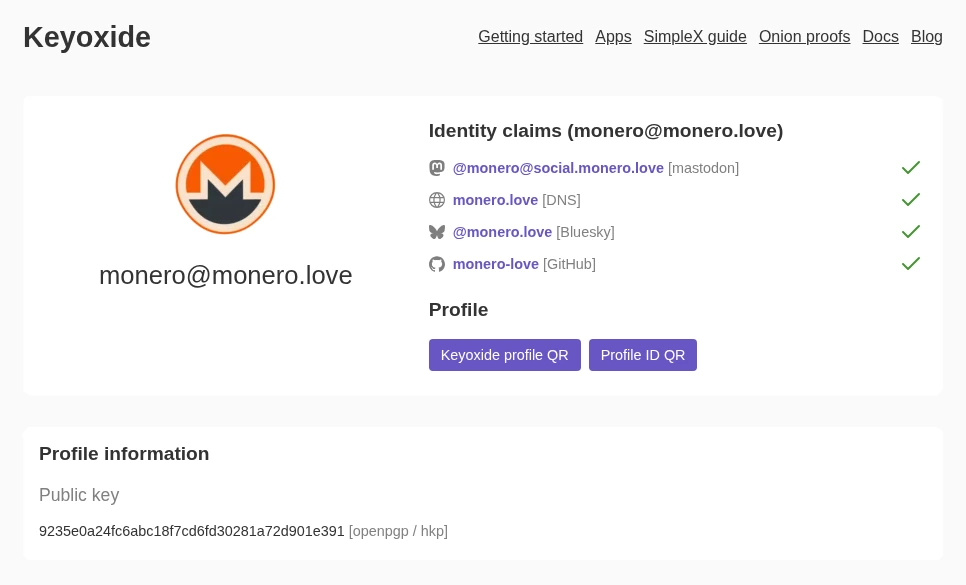
On keyoxide.net, search for monero@monero.love. You can also open the Keyoxide profile by fingerprint. Under Profile information, find the public key fingerprint and compare it with the entry for monero@monero.love on Monero Love's PGP page. The same page lists a separate signing key for the warrant canary. Use the contact key for this check.
9235 E0A2 4FC6 ABC1 8F7C D6FD 3028 1A72 D901 E391
Keyoxide shows the fingerprint as lowercase text without spaces. Compare every character, ignoring spaces and capitalization. If the values differ, check the current fingerprint through a Monero Love channel you already use before relying on either result.
Under Identity claims, look for monero.love [DNS] and its green check. This claim points to a TXT record, a public text entry in the domain's DNS. The signed claim in the OpenPGP key tells Keyoxide which domain to query. The record at that domain contains a proof that Keyoxide can match to the key. Together, the two checks link the OpenPGP identity to control of the domain's DNS records. Keyoxide's DNS proof format.
The domain publishes an Argon2id hash of the OpenPGP proof string. To see the TXT records, open the public DNS response for monero.love and look for the entry under Answer whose data starts with $argon2id$. If you have dig, you can query the same resolver in a terminal.
dig @8.8.8.8 +short TXT monero.love
Copy the whole hash, including the dollar signs and everything after them. Leave out any outer quotation marks. In the keyoxide.net Argon2 utility, use Verify Argon2 hash. Paste the hash into Hash and enter the proof string below in Input.
openpgp4fpr:9235e0a24fc6abc18f7cd6fd30281a72d901e391
The utility should report Hash matches the input. The encoded hash supplies the salt and settings the utility needs to test the fingerprint. Generating a new hash would use a different salt. This manual check confirms that the DNS record matches the fingerprint you entered. The green check on the profile also checks the claim in the signed key. Keyoxide's hashed proof format.
Each green check covers the address on its own row. For Mastodon, open the verified Monero Love account and compare the complete handle, @monero@social.monero.love, with the sender's. A lookalike on a different Mastodon server can use the same name and avatar. If a message asks for a payment or sends a download, confirm that specific request through a channel listed on the verified profile.
Start with one public account you control. The steps below use GnuPG to link a Mastodon account to the key for your pseudonym. The example URL uses social.example.org. Replace it with your account's real address.
If you already have an OpenPGP key for this pseudonym, use its primary fingerprint. To create one, run gpg --full-generate-key --expert. Keyoxide's guide uses an ECC (sign only) key with Curve 25519. Choose an expiry, enter your pseudonym and an email address you control, and set a passphrase when prompted. Use an address you are willing to publish alongside the pseudonym. Keyoxide's OpenPGP setup guide.
List your keys and find the entry for your pseudonym.
gpg --list-secret-keys --fingerprint
Copy the full fingerprint associated with the primary key, listed under sec. In the steps below, replace FINGERPRINT with that value without spaces.
Copy the full URL from your public Mastodon profile. Include the server and the @username path. In a terminal, open the key editor.
gpg --edit-key FINGERPRINT
At the gpg> prompt, enter list to see the key's user IDs. Use uid N with the number beside the name and email you want to attach the claim to. Check that GnuPG marks that user ID as selected, then enter notation. At the notation prompt, enter the line below with your own Mastodon URL.
proof@ariadne.id=https://social.example.org/@quietnode
Enter your passphrase if prompted, then type save at the gpg> prompt. The notation is a signed claim from your OpenPGP user ID to your Mastodon account. Keyoxide's GnuPG instructions.
For a direct proof, put openpgp4fpr:FINGERPRINT on its own line in your Mastodon bio under Edit profile. Save your changes and load the public profile to confirm the entire proof is visible. You can also put it in a profile metadata field. Keyoxide's Mastodon instructions.
For an Argon2id proof, paste the same openpgp4fpr: string with your full fingerprint in lowercase into the keyoxide.net Argon2 tool. Copy the entire $argon2id$ result into your bio in place of the direct proof. Anyone who sees a direct profile link you post beside the hash can follow it to your other claims.
Export the updated public key. The export includes the claim you just added.
gpg --armor --output public.asc --export FINGERPRINT
Upload public.asc to keys.openpgp.org. Use the verification option for the email on the user ID and follow the link in the email so the keyserver can publish that identity. Keep the private key and its passphrase on your side.
Search for the full fingerprint on keyoxide.net. Check for a green mark next to the Mastodon claim and open its link to confirm the account address. Share the resulting Keyoxide page from a website or account your readers already know.
gpg --edit-key FINGERPRINT and enter showpref to review the notations on your user IDs. Check that the notation appears under the intended name and email. Export the saved key again and upload the new file if the keyserver still has an older copy. Keyoxide's guide to listing claims.When adding another account, check where that platform expects the proof. Add its claim to the same user ID only if you want readers to connect it to the same pseudonym. Publish the proof and upload the updated public key, then check the new result on keyoxide.net. Supported services.
Using the same key on a project website and its support account helps readers connect them. Reusing it on a personal account would connect that account too.
Choose which activities belong to one identity before publishing proofs. If two personas need separation, reusing a key or publicly signing a statement linking them connects them. Different keys alone cannot hide connections revealed by your accounts, writing, or other behavior.
Review public key metadata too. A personal email address or legal name attached to a key can disclose information you meant to keep private.
With a digital signature, a private key signs a message and a public key lets other people check it. A valid signature shows that the corresponding private key signed the content and that the signed content matches what you received.
That gives you evidence of key control. It does not prove a legal name, good intentions, or even that only one human uses the key. Keys can be shared, stolen, or transferred.
Anyone can put the name “QuietNode” on a new key. Start with the key you've already confirmed belongs to QuietNode. The GNU Privacy Handbook covers signatures and the problem of validating keys.
Suppose an account with QuietNode's name sends you a download link and points you to a genuine Keyoxide profile. Open that profile through the project website you normally use. If the verified account opens on a different server from the sender's, use the verified account to see whether the project announced the download. A link to QuietNode's profile is public and anyone can forward it.
A different situation is when the sender's exact account appears on the profile but the proof fails. The account could have removed its public proof, or Keyoxide might be unable to fetch it. Check the linked account's public bio or proof location. If you still can't confirm the connection, wait for an announcement on the project website or another channel you already recognize. How Keyoxide checks claims.

Even when the claim checks out, verify what the sender is asking you to do. If a direct message gives you a new donation address, open the project's donation page independently and compare the full address. For a download, use the project's official release page. The green check answers which account belongs to the profile. The project's own publication gives you a separate way to check the request.