Monero / Wallets / Privacy
Monero Offline Wallets: Cupcake, Cold Storage and Signing
Set up Monero offline wallets with Cupcake, Feather on Tails or CLI signing. Compare hardware wallets, follow payment examples and plan secure recovery.
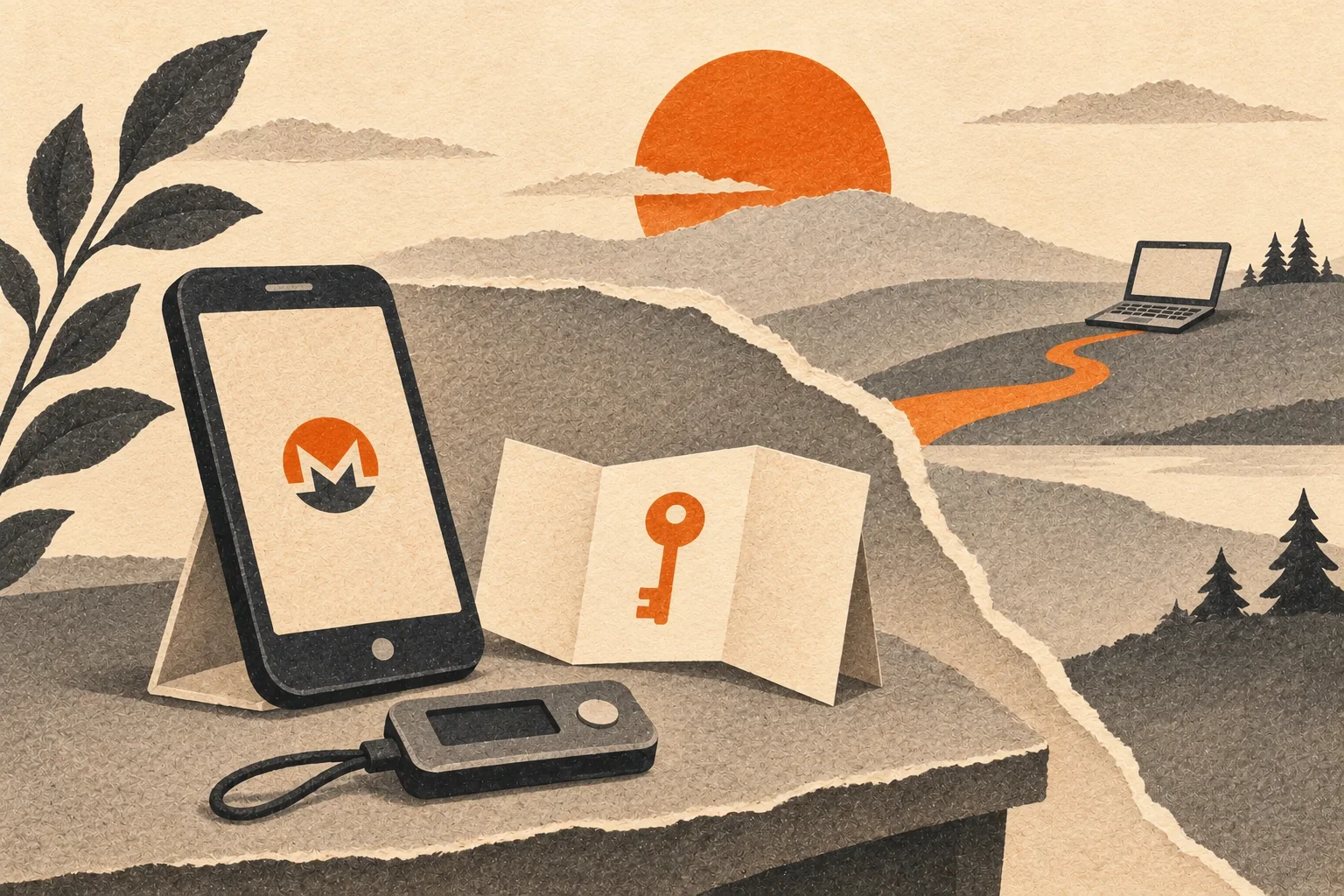
A Monero offline wallet keeps the keys that authorize spending away from an internet-connected device. You can receive XMR while the signer is off. A view-only wallet checks incoming payments, and the offline device signs transactions when you need to spend.
Cupcake makes this possible with two phones. Feather offers a desktop workflow using animated QR codes or files. Monero's command-line wallet supports file-based signing, while compatible hardware wallets handle signing inside a separate device.
The choice depends on how often you spend, which devices you can maintain, and whether you can recover the wallet after one fails. A complicated arrangement that you cannot restore is a poor place for savings.
What makes a Monero wallet offline?
A wallet holds keys and transaction information. The blockchain records your XMR, so there are no coins inside a phone or USB stick to disconnect from the network.
The important boundary is the private spend key, which authorizes spending. An online wallet with that key is a hot wallet. Writing its seed on paper gives you an offline backup, but the wallet itself still has spending keys online. Monero's wallet terminology makes this distinction explicit.
An air gap separates the signer from network connections. Transaction data still has to cross that boundary, through QR codes or removable media. An offline signer can receive malicious input. Its software and the details you approve still matter.
A view-only wallet holds the private view key and address information needed to recognize incoming payments, without the private spend key. It cannot spend by itself. Treat it as sensitive anyway: access to it can expose incoming payments and amounts. A view-only wallet reveals more than a public block explorer.
Monero adds one complication. A view-only wallet cannot reliably identify spent outputs without information from the signer called key images. These allow it to check which outputs have been spent. Without updated key images, its balance can be misleading. The official view-only guide explains this limitation.
Compare Monero offline wallets
| Method | Signing device | How data moves | Main trade-off |
|---|---|---|---|
| Cupcake with Cake Wallet | Dedicated iPhone or Android phone | QR codes between phones | Convenient cameras, but you maintain a whole phone |
| Feather | Dedicated offline computer | Animated QR codes or files | Guided desktop process, with more equipment to manage |
| Monero CLI | Dedicated offline computer | Transaction and synchronization files | Explicit control, with more manual steps |
| Compatible hardware wallet | Purpose-built signing device | Supported USB or Bluetooth connection | Less manual transfer, with dependence on firmware and device support |
| Paper or metal recovery backup | No signer until restored | Recovery information entered into a compatible signer | Useful for recovery or infrequent access, but cannot sign on its own |
Hardware wallets belong in this comparison because they isolate signing keys. A USB-connected device is not physically air-gapped, even when its design keeps the spend key inside the device.
Cupcake: use a second phone as the signer
Cupcake is Cake Wallet's companion signing app for iOS and Android. For Monero, Cupcake holds the spending keys while the paired Cake Wallet handles synchronization, transaction preparation and broadcasting.
Calling a phone a hardware wallet does not change its hardware. You still depend on its operating system, camera, storage and app. Prefer a device in good condition that can run supported software. Cake's mobile-hardening guide recommends a dedicated, updated device with a clean setup. An old phone with a failing battery or uncertain history is a poor foundation for long-term access.
Set up the two phones
- Download Cupcake through its official download links. Prepare the signing phone before creating the wallet, including the operating system and app installation.
- Disconnect the signing phone from networks. Disable Wi-Fi, mobile connectivity and Bluetooth, and check those settings after restarting it. Airplane mode alone should not be your only check.
- Create a new Monero wallet in Cupcake. Set a strong PIN or password and record the recovery phrase offline.
- In Cupcake, open Menu → Link to Cake Wallet.
- On the online phone, open Cake Wallet's Wallets → Restore Wallet → Cupcake App flow and scan the linking QR code.
- Compare the receiving address with the offline wallet before sending a small test deposit.
The pairing steps follow Cake's Cupcake setup guide. Pair using the view-only linking function. Do not restore Cupcake's recovery phrase into the online phone.
For a new cold-storage arrangement, create new keys while offline. Importing the seed of an old hot wallet into Cupcake cannot undo any copies made while that seed was online. Transfer funds to the newly generated wallet instead.
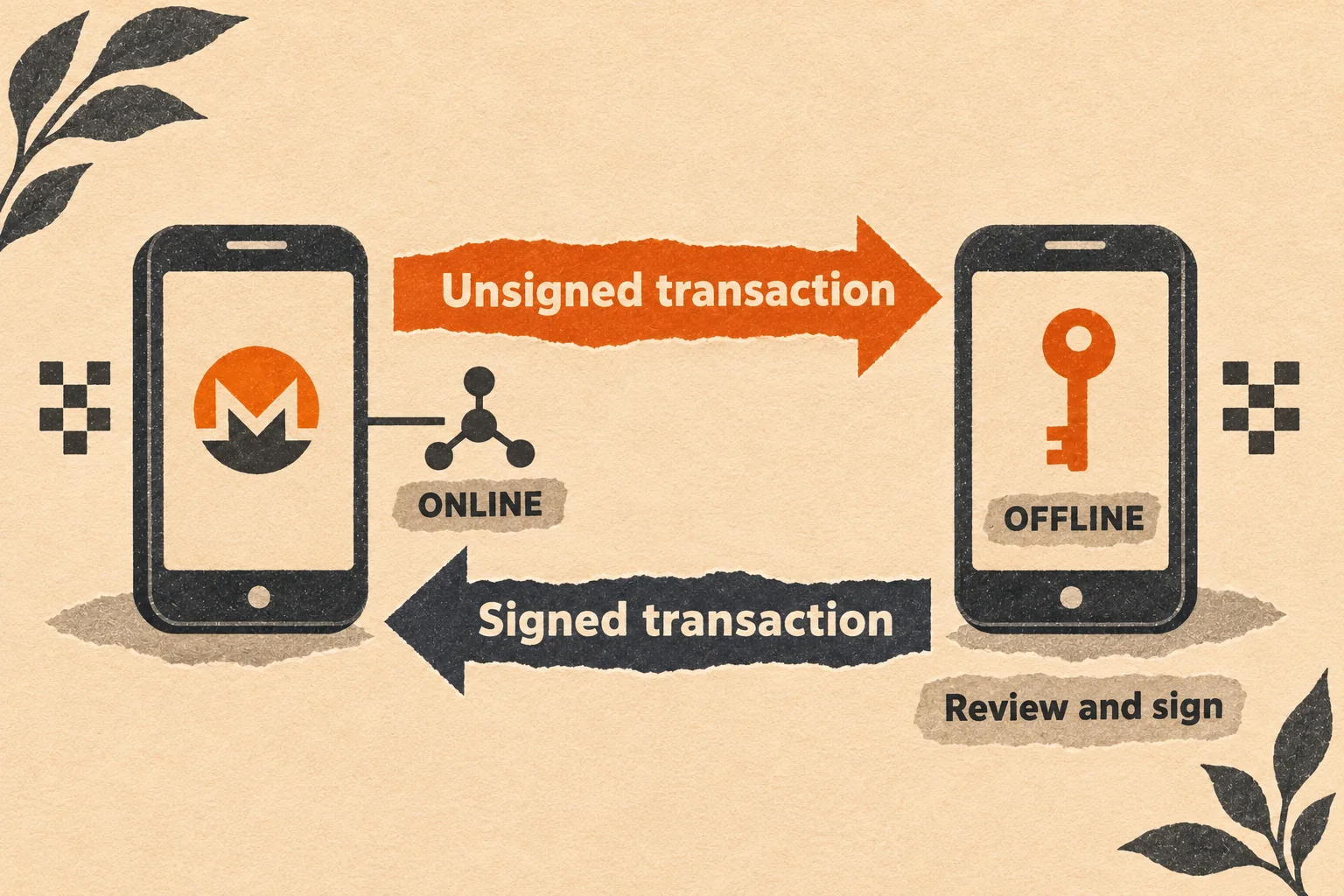
Example: pay 0.1 XMR without connecting Cupcake
Suppose your offline wallet holds XMR and you want to pay 0.1 XMR to a merchant. Enter the merchant's address and amount in the paired online Cake Wallet.
Follow the QR prompts to exchange the required wallet data. Monero may need an output and key-image exchange before the transaction can be prepared. Cupcake's released Monero code handles that exchange. When it reads an unsigned transaction, it displays the destinations, amounts and fee for approval.
On the offline phone, compare the destination with the merchant's address obtained through a trusted channel. Check the amount and fee there. If malware replaced an address on the online phone, approving the replacement would still authorize the wrong payment.
After approval, Cupcake displays the signed transaction as QR data. Scan it back into Cake Wallet and broadcast from the online phone. Keep the signer offline throughout. Your cost is 0.1 XMR plus the actual network fee shown by the wallet.
Feather: offline signing on a computer
Feather's offline-signing guide describes a paired desktop setup. Keep the spend key on the offline computer and a view-only wallet on the online computer. Feather supports animated QR codes and file transfers.
On the signer, enable Settings → Network → Offline, then create the wallet. Disconnect the computer's network interfaces too, because Feather's setting only controls Feather.
Use Feather's View-only details to transfer the private view key, primary address and restore height to the online installation. Its restore wizard accepts the QR code. Keep recovery words off the online computer.
For a payment, the guided exchange can include:
- Outputs from the online wallet to the signer.
- Key images returned to the online wallet.
- An unsigned transaction sent to the signer for review.
- The signed transaction returned for broadcasting.
A dedicated offline laptop can sign occasional withdrawals while a daily-use desktop watches incoming deposits. Cameras on both machines avoid shuttling a storage device between them. They also require patience with focus and screen brightness. Feather documents QR scanning adjustments, including slower animation and smaller fragments.
Use Tails for the offline signer
Tails can run Feather on the signing computer. Using Tor on Tails is still an online workflow, so start the signer in Offline Mode under Additional settings on the Tails Welcome Screen. Check that setting at each boot and leave network cables unplugged.
Prepare the software on a separate online device. Download the Tails AppImage from Feather's official site, verify its signature and transfer it to the signing system. Follow the Feather installation guide for Tails to make the AppImage executable. Enable Feather's own offline setting before creating or restoring the wallet.
Tails normally discards session files at shutdown. Create its encrypted Persistent Storage, protect it with a strong passphrase and save Feather in the Persistent folder. On Tails, Feather stores its wallets and settings in a neighboring feather_data folder. Keep both there so the next session can reopen the wallet. Maintain a separate recovery backup in case the USB stick fails.
A practical setup is a dedicated offline laptop booting Tails, paired with a view-only Feather wallet on your everyday computer. Exchange outputs, key images and transactions using the process above. The everyday computer synchronizes and broadcasts, while Tails signs offline.
Tails warns that this AppImage does not update automatically. Plan verified offline updates rather than reconnecting the signing system. Tails also cannot make untrusted hardware safe.
Monero CLI: understand the file exchange
The command-line method exposes the same process as named files. It suits users comfortable managing separate wallet directories and checking which machine runs each command. The Monero offline-signing documentation warns that this setup leaves room for mistakes.
The example below assumes a corresponding offline software wallet and online view-only wallet already exist, and that the online wallet is synchronized. Enter these commands at the wallet prompt. They will not work in a shell. Keep the offline wallet disconnected.
First, export outputs from the online view-only wallet:
export_outputs all outputs
Move the outputs file to the offline computer. In the offline wallet, import it and export key images:
import_outputs outputs
export_key_images all key_images
Return key_images to the online computer. In the online view-only wallet:
import_key_images key_images
transfer RECIPIENT_ADDRESS 0.1
Replace RECIPIENT_ADDRESS with the intended recipient. The transfer command prepares unsigned_monero_tx. Move that file to the offline wallet's working directory, then run:
sign_transfer
Review the destination, amount, fee and change information before approving. This produces signed_monero_tx. Return that file to the online wallet's working directory and run:
submit_transfer
These command forms and default filenames are documented in the CLI reference and implemented in Monero's wallet code. This software-wallet procedure is not a replacement for a hardware wallet's device integration.
Repeat the output and key-image synchronization when needed, including after spending or rebuilding a wallet. The all option includes earlier exported records, which matters when restoring a fresh counterpart. Protect these files as wallet information. Use dedicated transfer media and avoid opening unrelated files on the signer.
Hardware wallets: separate keys without a second computer
A compatible Ledger or Trezor can handle Monero signing while a supported wallet application runs online. Confirm the transaction on the device and create the wallet through its hardware-wallet integration. Do not type the device's recovery phrase into a desktop wallet to connect it.
Compatibility depends on the device, operating system and wallet application. Trezor's current Monero support table lists Model T, Safe 3 and Safe 5 with Monero GUI and CLI on desktop. Check its separate mobile combinations if you plan to use a phone. Trezor Suite itself does not manage Monero.
Cake's hardware-wallet documentation lists Ledger and Trezor support for XMR. Its support for another manufacturer's Bitcoin device does not imply Monero support. Check the exact pairing before buying anything.
For someone who spends regularly, device signing can be easier to maintain than a second computer. That convenience still depends on authentic hardware, supported firmware, a usable backup and careful confirmation of each payment.
Paper wallets and recovery backups
Paper and metal can preserve recovery information without electricity. They do not run a wallet, synchronize balances or sign payments.
Monero publishes a paper-wallet guide, which calls for generation on a clean, air-gapped computer. Opening a random wallet-generator website and printing its output is not a safe substitute.
You can also create a wallet with trusted software offline and write down its recovery phrase. Avoid photographs, cloud notes and network printers for that record. Anyone obtaining the necessary recovery information can recreate the spending keys elsewhere.
A rarely used savings wallet could have an offline signer and two protected recovery copies in separate locations. If the signer fails, recover on a replacement offline device. Restoring the phrase into an everyday online wallet changes the security arrangement, even if the paper copy never left its safe.
Record the wallet software, seed format and any required seed passphrase. Wallet passwords and seed passphrases have different roles. Feather's seed documentation distinguishes its 16-word Polyseed format from older formats. Do not assume every wallet accepts the same words or derives the same keys from them.
Test recovery before moving the full balance
Start with an amount you can afford to lose while learning. Confirm the receiving address on the signer, fund it, and wait for the online wallet to synchronize. Complete one outgoing payment through the full signing process.
Then test recovery on a trusted offline device while preserving your original working wallet. Check that the restored address matches. If you use subaddresses, compare the same account and subaddress index. Bring the paired wallet's output and spent-status information up to date before relying on its balance.
Plan software updates too. Reconnecting a signer that already holds keys defeats the intended separation. Verified update files can be transferred offline where the platform supports that. If a phone requires online activation or updates, arrange a tested offline recovery path before rebuilding it. Do not improvise the procedure with the only copy of your seed.
Download through the official Monero, Feather or Cupcake channels. Follow each project's verification instructions. Our PGP verification guide explains signatures and fingerprints where projects provide them.